
How to Create Bitcoin Wallet with Trust Wallet
If you’re new to Bitcoin, one of the most important steps is setting up a secure, self-custody wallet—and Trust Wallet is one of the best options for beginners. Unlike keeping Bitcoin on an exchange (like Binance or Coinbase), Trust Wallet gives you full control of your private keys, meaning you truly own your crypto.
Trust Wallet is a secure, beginner-friendly mobile wallet that puts you in full control of your private keys—so only you can access your Bitcoin and other crypto. It supports thousands of cryptocurrencies and provides extra features like staking, NFT storage, and a Web3 browser, all while keeping security as the top priority. Simple, powerful, and reliable, it’s a great way to safely manage your crypto on the go.
History of Trust Wallet
Trust Wallet was founded in 2017 by Viktor Radchenko, a Ukrainian software developer who wanted to create a simple and secure mobile wallet to store Ethereum-based tokens. Its clean design and focus on decentralization quickly attracted a large user base. In 2018, Trust Wallet was acquired by Binance, one of the world’s largest cryptocurrency exchanges, to serve as its official wallet. Today, Trust Wallet is still operated under Binance’s ownership, but it continues to function as an independent, non-custodial wallet that emphasizes user control and privacy.
In this step-by-step guide, you’ll learn:
✔ How to safely download Trust Wallet (avoiding fake apps)
✔ Setting up your first Bitcoin wallet (with screenshots)
✔ How to receive & send Bitcoin
✔ Critical security tips (protect your funds from hackers)
Let’s get started!
Step 1: Download Trust Wallet (Official App Only)
✔ Warning: Fake wallet apps exist! Only download from these official sources:
- Trust Wallet home page: Trust Wallet
- iOS (iPhone/iPad): App Store Link
- Android: Google Play Store Link
✔ Verify before downloading:
- High ratings (4.5+ stars)
- Millions of downloads
(Never install from third-party websites—scammers create fake wallets to steal crypto!)
Step 2: Create a New Wallet
1. Open Trust Wallet after installing.
2. Tap “Create new wallet”.
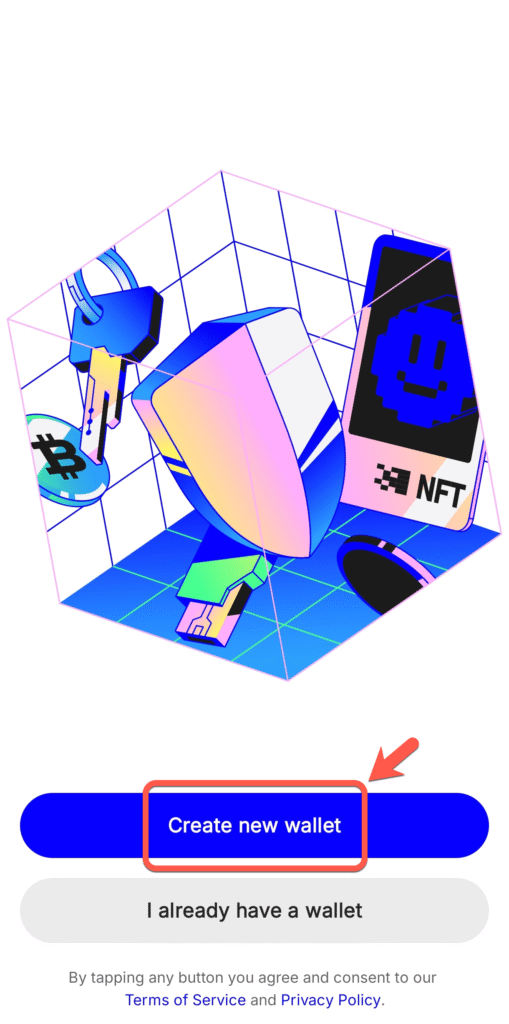
3. Read the disclaimer and tap “Continue”.
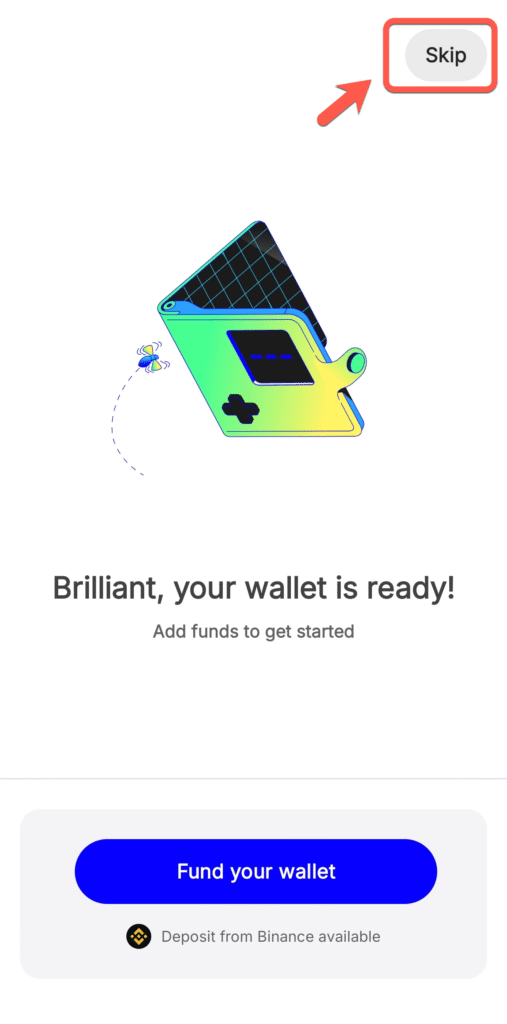
4. Click “Skip” to go to Home screen.
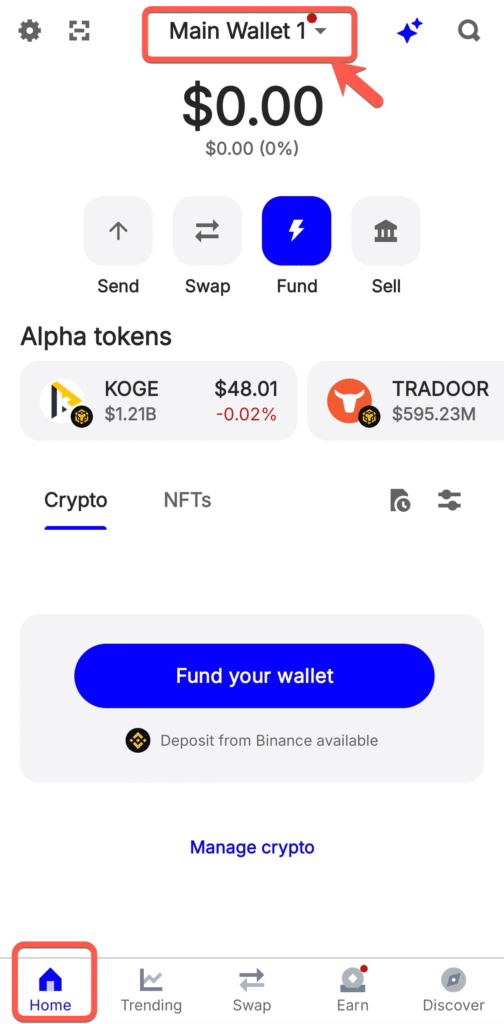
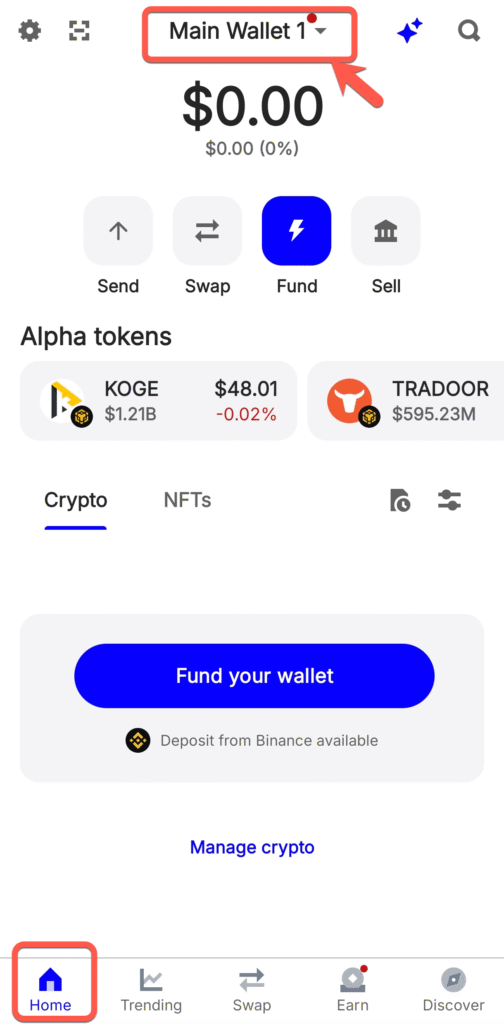
5. In Home Screen, the Wallet displays. You can select the Wallet in the drop down list to view each.
You can have multiple wallets in same app.
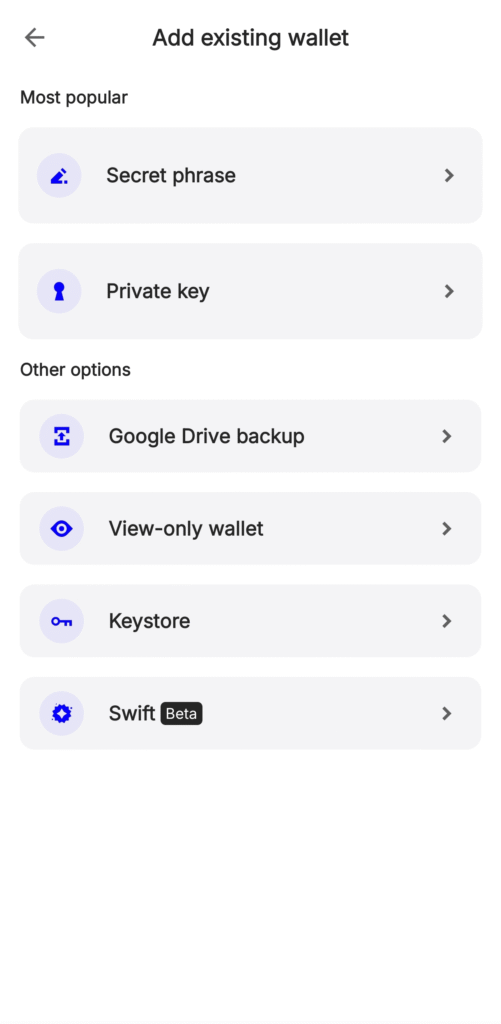
(Note: If you already have a wallet, in first step, select “I already have a wallet” and enter your 12-word recovery phrase.)

Step 3: Backup Your Recovery Phrase (MOST IMPORTANT STEP!)
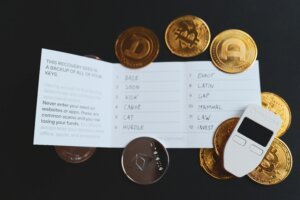
This is the most critical part—your 12-word recovery phrase is the only way to restore your wallet if you lose your phone. Or you also can use your 12-word recovery phrase to restore it on a new device.
1. In Home Screen, select the Wallet in the drop down list.
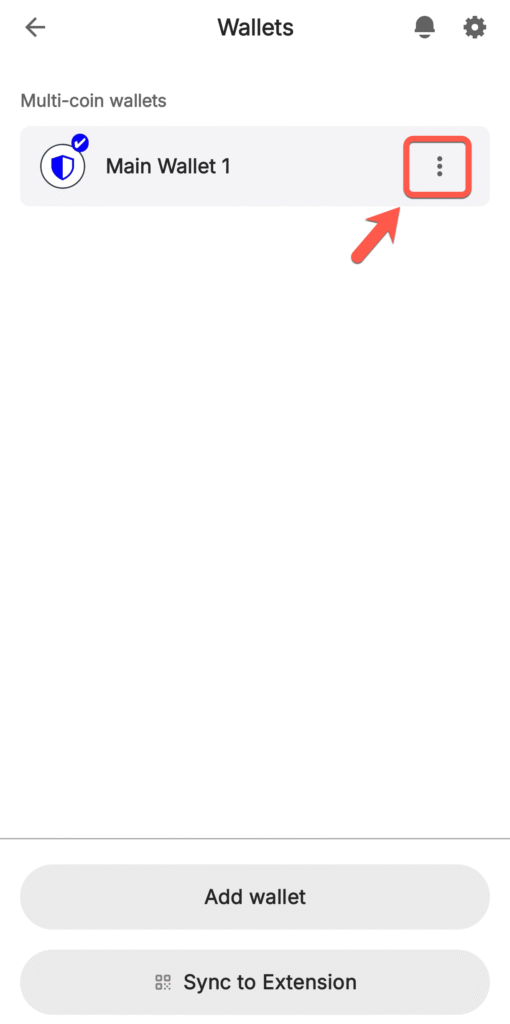
2. Click the three dot icon next to the Wallet.
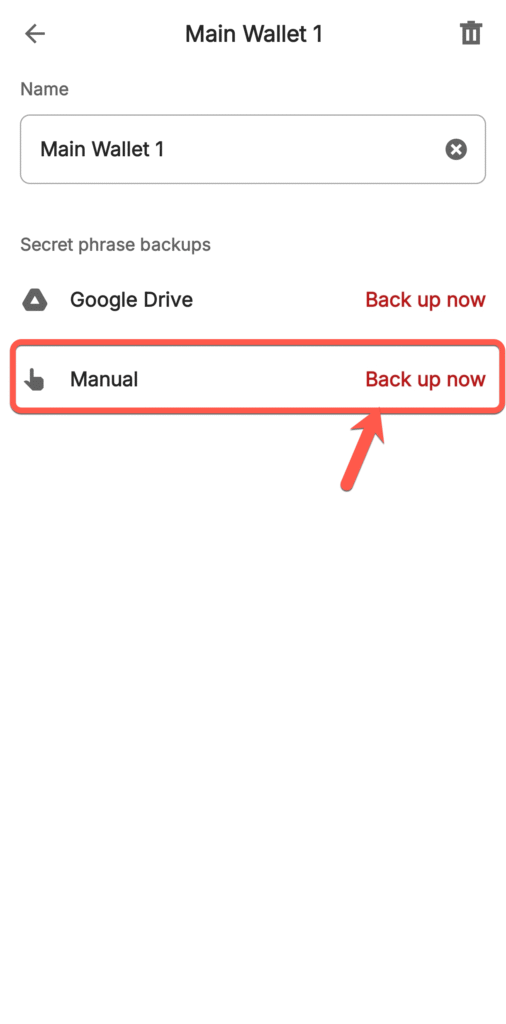
3. Click “Back up now” in Manual option (recommend).
4. Select all tick boxes and click “Continue” button.
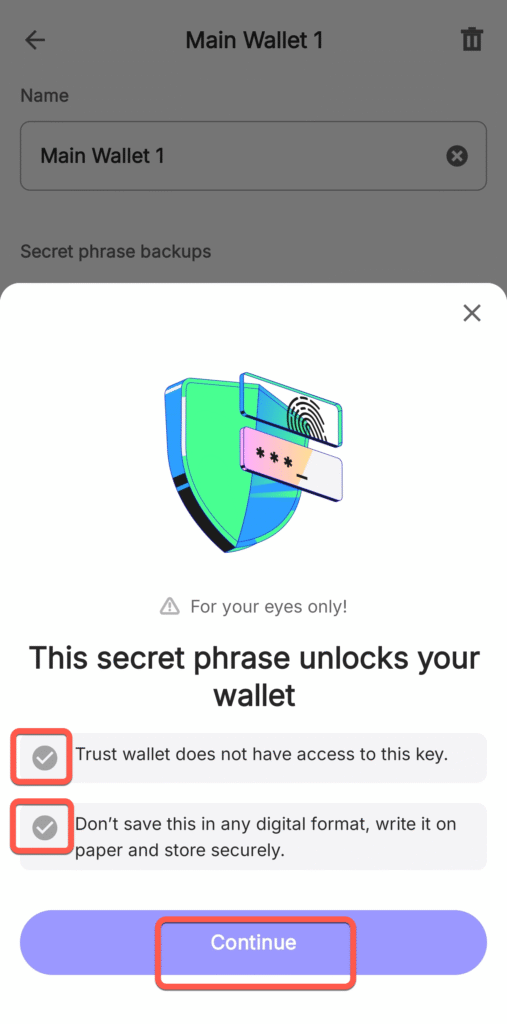
5. After it will display the secret phrase (12-word recovery phrase) such as
- dog
- cat
- mouse
- animal
- sky
- window
- cloud
- plane
- luggage
- passport
- book
- notes
You should write it down on paper and save it privately (should not share it to anyone)
6. After complete, click “Continue” for confirmation.
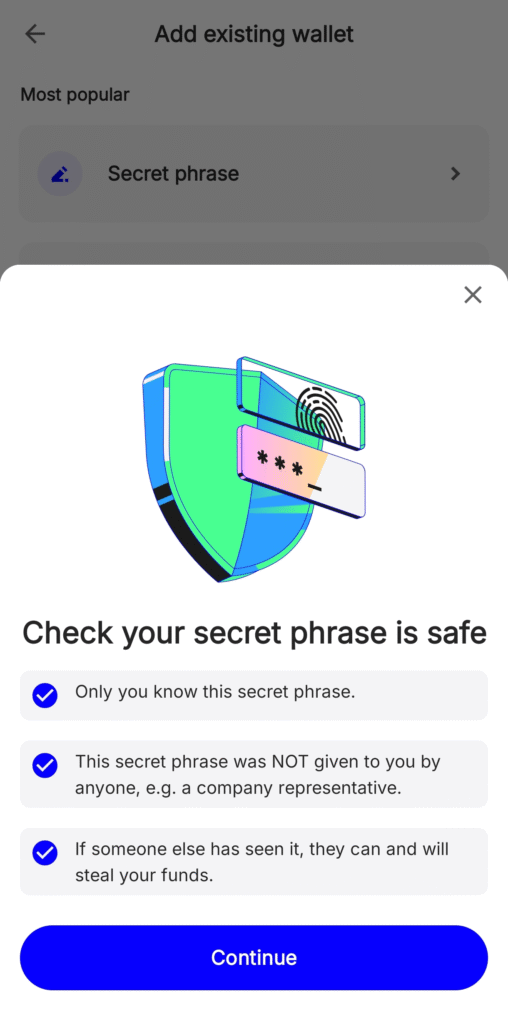
❌ Never:
- Take a screenshot (hackers can steal it)
- Store it digitally (email, cloud, notes)
- Share it with anyone (even Trust Wallet support!)
✔ Do This Instead:
- Write it down on paper (pen & paper is safest).
- Store multiple copies in secure locations (safe, bank deposit box).
- Verify the words by re-entering them when prompted.
Pro Tip: Consider a metal backup (like Cryptotag or Billfodl) to protect against fire/water damage.
Step 4: Access Your Bitcoin Wallet
Once your wallet is created:
1. In Home Screen, click “Manage crypto”.
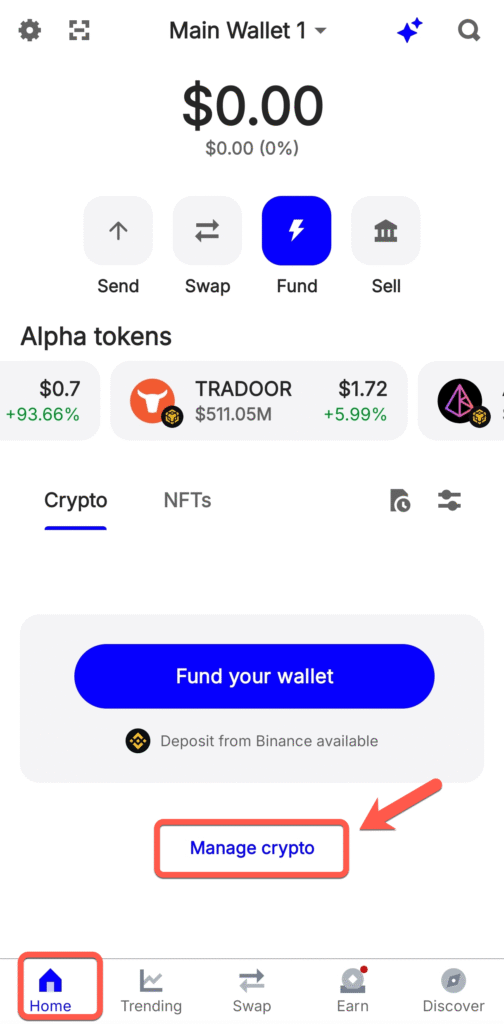
2. Search for “Bitcoin” (BTC) and toggle it on.
Now, your Bitcoin wallet is active!
You can do similar steps to other crypto.
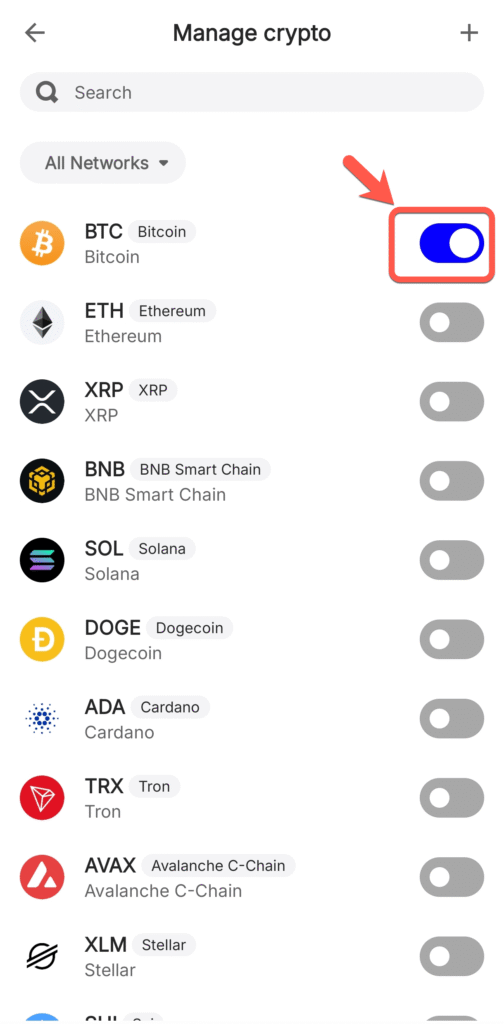
3. In Home Screen, you could see all crypto that available for send, receive, buy or sell.
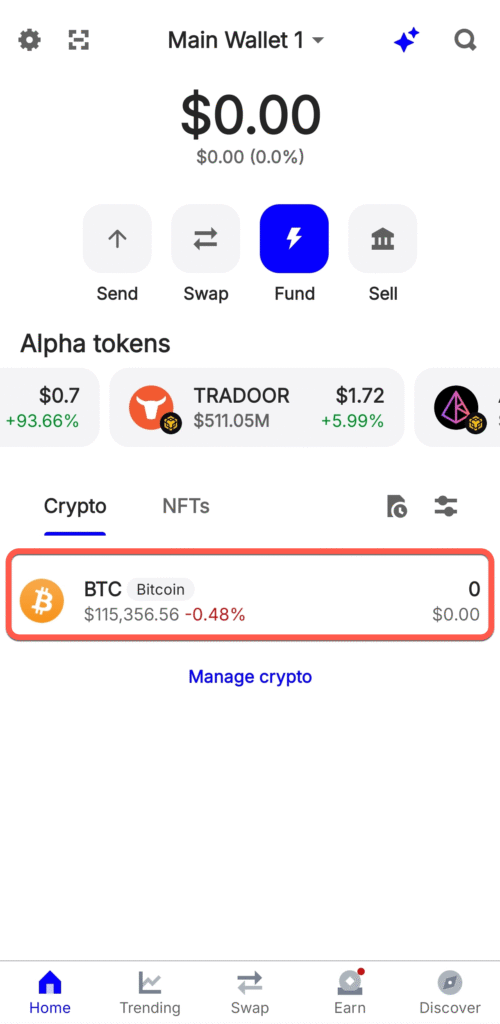
(Note: Trust Wallet supports thousands of tokens—you can enable/disable them anytime.)
Step 5: Receive Bitcoin (Your First Deposit)
To receive Bitcoin:
1. From Home Screen, select the crypto that you want to receive.
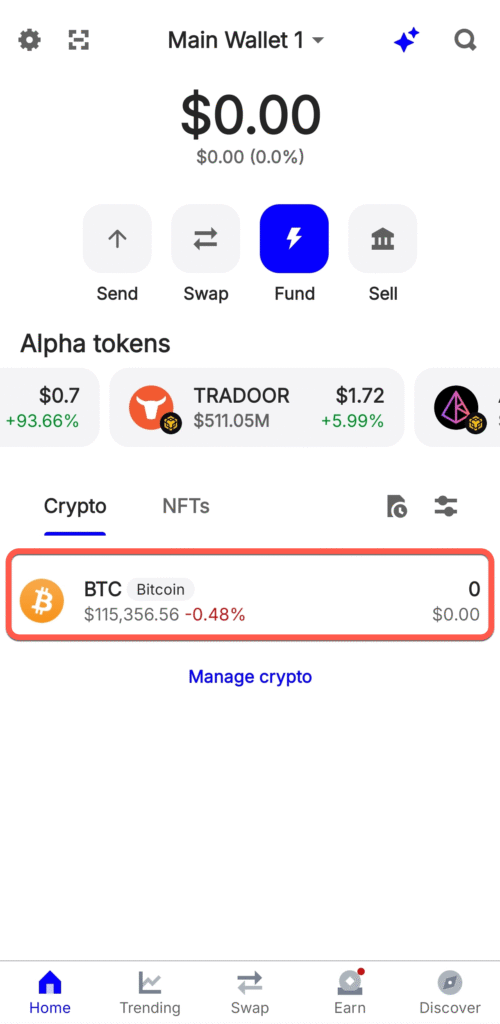
2. Tap “Receive” on the Bitcoin wallet screen.
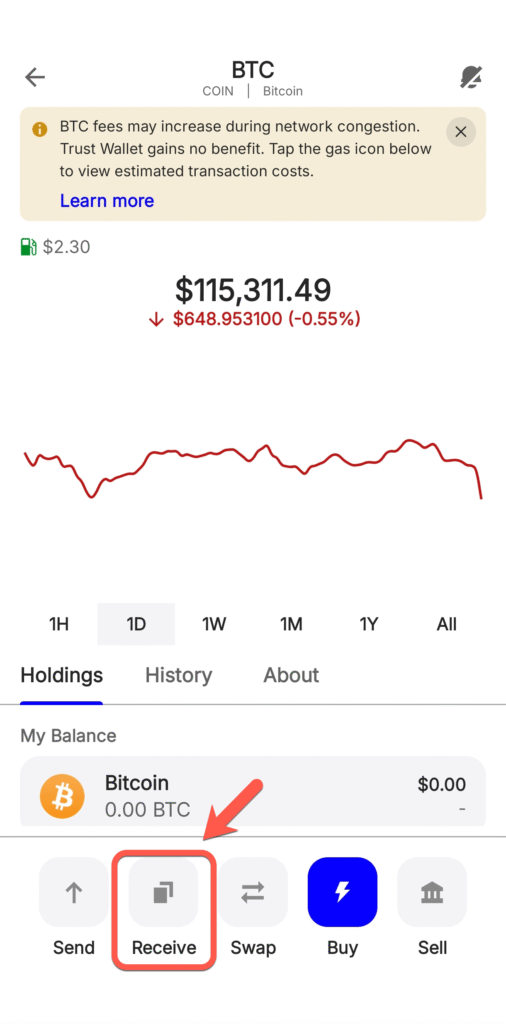
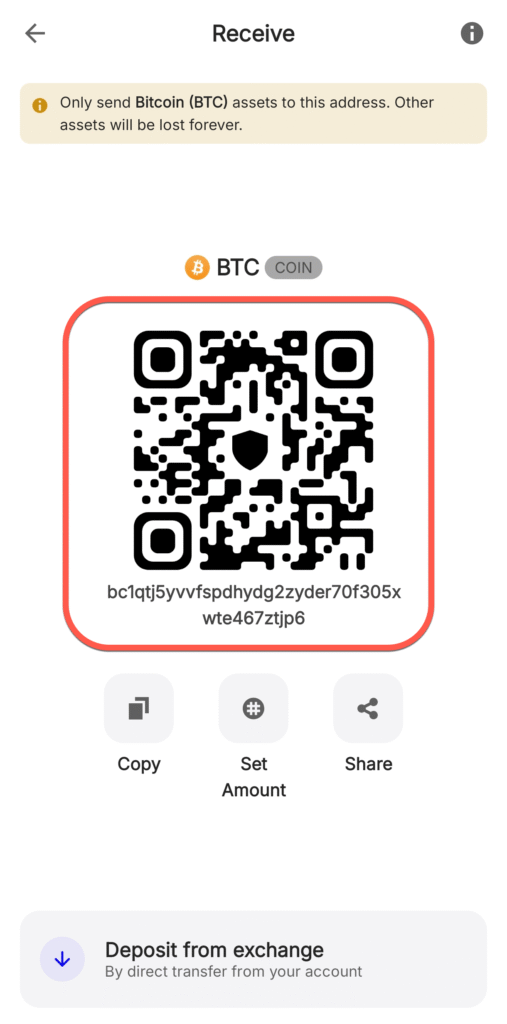
3. You’ll see:
- QR code (for mobile scanning)
- Bitcoin address (long string starting with “1”, “3”, or “bc1”)
You can send this QR code or Bitcoin address to the other people so they can send Bitcoin to you.
(Note: Trust Wallet supports thousands of tokens—you can enable/disable them anytime.)
✔ Other ways to Get Bitcoin?
- Buy from an exchange (Binance, Coinbase, Kraken)
- Receive from other wallet
- Receive from a friend
- Earn via Bitcoin rewards apps
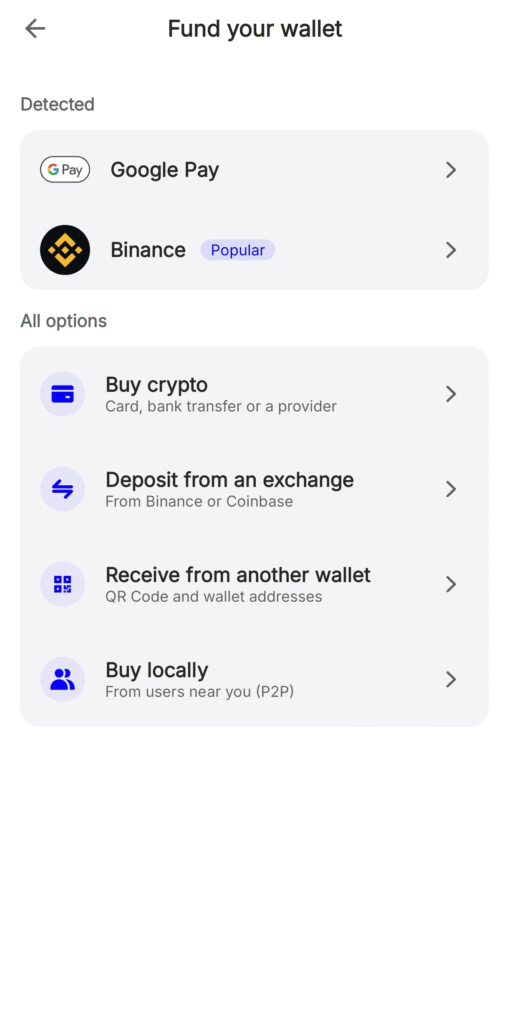
✔ Always double-check addresses! Scammers can swap addresses via malware.
Step 6: Sending Bitcoin (How to Transfer Safely)
To send Bitcoin:
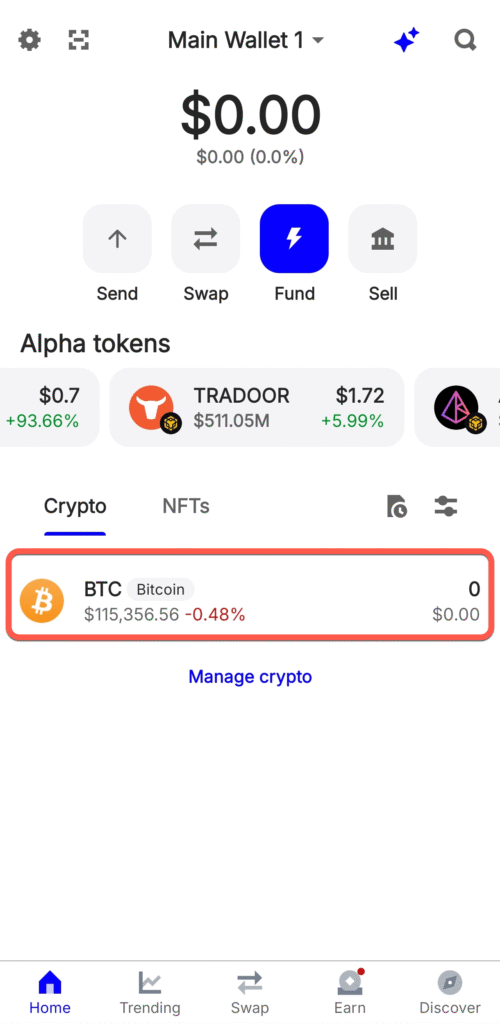
1. From Home Screen, select the crypto that you want to receive.
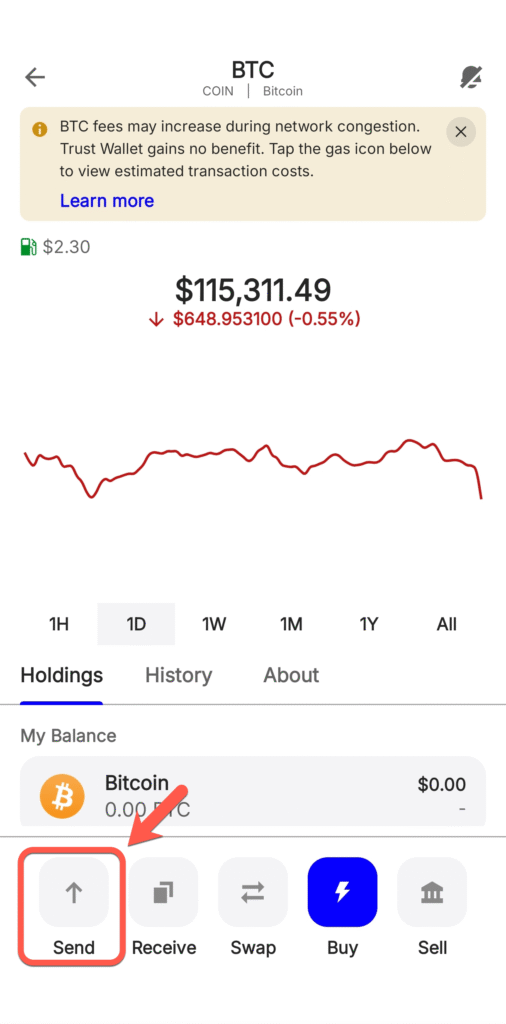
2. Tap “Send” in your Bitcoin wallet.
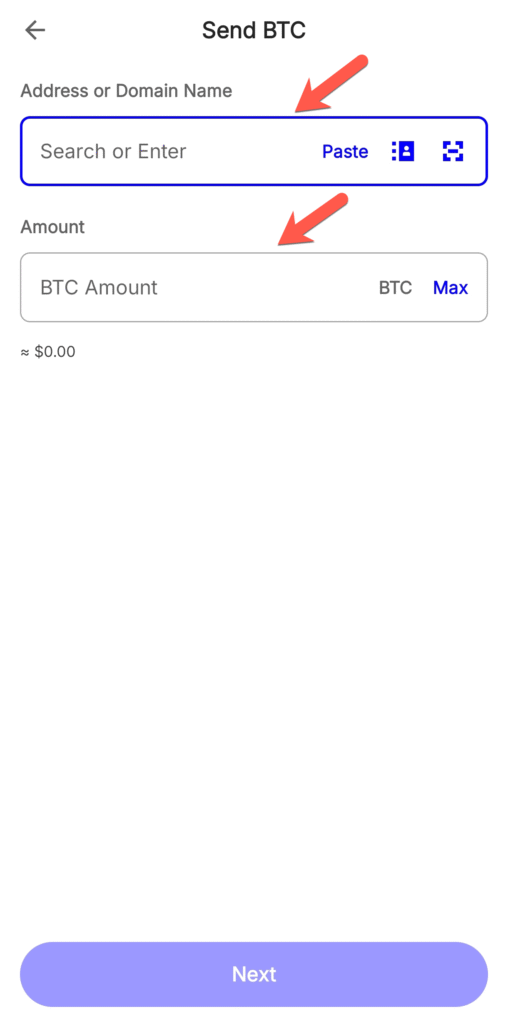
3. Enter:
- Recipient’s BTC address (or scan QR)
- Amount (in BTC or your local currency)
Confirm the transaction (check fees) then complete the transaction.
Pro Tip:
- Test with a small amount first (e.g., $5) before large transfers.
- Use “Replace-by-Fee” (RBF) if you want to adjust fees later.
5 Essential Security Tips for Trust Wallet
- Enable Biometric Lock
- Go to Settings > Security > App Lock → Enable Face ID/Fingerprint.
- Disable Cloud Backups
- iCloud/Google Drive backups can leak your private keys.
- Use a Strong Phone Passcode
- Prevents physical theft access.
- Beware of Phishing Scams
- Never enter your seed phrase on any website.
- Consider a Hardware Wallet for Large Amounts
- For $1,000+, use Ledger/Trezor + Trust Wallet for extra security.
Next Steps: What Now?
You’ve set up your first Bitcoin wallet! Now, you can:
- Buy Bitcoin via Trust Wallet’s “Buy” button (credit card).
- Explore DeFi (Trust Wallet supports Ethereum, BSC, and more).
- Learn about cold storage (for long-term holding).
Frequently Asked Questions (FAQ)
Can I recover my wallet if I lose my phone?
Yes! Use your 12-word recovery phrase to restore it on a new device.
Is Trust Wallet really safe?
Yes, if you:
Never share your seed phrase
Avoid fake app versions
Enable all security features
Conclusion
You’ve just taken a huge step toward true financial freedom by owning your Bitcoin keys. This means that your Bitcoin is truly yours—no exchange can freeze it, no third party can control it. With this power comes responsibility: protecting your wallet and keeping your keys safe is the foundation of your security. By learning to send, receive, and store Bitcoin on your own, you’ve joined a growing movement of people choosing independence over dependence. Now, step forward with confidence and curiosity as you explore the world of Bitcoin and everything it unlocks for the future of money.
(Need help? Drop a comment below!)
More Guides:
- Read more How to Buy Bitcoin Anonymously
- Best Hardware Wallets for Long-Term Storage (coming soon)
- How to Spot Crypto Scams (coming soon)



Comments